Automatic GCP IAM Authentication for GitHub Actions using OIDC
GitHub Actions often needs cloud access to push images, update snippets or simply deploy microservices. The most common pattern is storing a long-lived JSON service account key in GitHub secrets or using account access keys.
In this post I will remind you of a more secure, easier method: short-lived OIDC token.
Why even read this and know how to use OIDC for my GitHub actions (or other) workflows?
Good question, in short:
By updating your workflows to use OIDC tokens, you can adopt the following good security practices:
- No cloud secrets: You won't need to duplicate your cloud credentials as long-lived GitHub secrets. Instead, you can configure the OIDC trust on your cloud provider, and then update your workflows to request a short-lived access token from the cloud provider through OIDC.
- Authentication and authorization management: You have more granular control over how workflows can use credentials, using your cloud provider's authentication (authN) and authorization (authZ) tools to control access to cloud resources.
- Rotating credentials: With OIDC, your cloud provider issues a short-lived access token that is only valid for a single job, and then automatically expires.
No interrupting your daily ticket grooming with developers complaining about their SA account key expiration or, even worse, getting bombarded with security notifications about non-rotated keys and account credentials that are 3 years old (we’ve all done this at some point in time, let's be honest).
About OIDC in general
Brief introduction or a reminder for you my reader about what this is and how this works:
OIDC (OpenID Connect) is a standard login/authentication protocol that lets an app prove who a user is by delegating the sign-in to a trusted identity system.
The most important ideas to keep in mind::
- OAuth 2.0 is mainly about authorization (“this app is allowed to access X”).
- OIDC adds an identity layer on top of OAuth 2.0 so the app can also do authentication
- Each job requests an OIDC token from GitHub's OIDC provider, which responds with an automatically generated JSON web token (JWT) that is unique for each workflow job where it is generated. When the job runs, the OIDC token is presented to the cloud provider
- To validate the token, the cloud provider checks if the OIDC token's subject and other claims are a match for the conditions that were preconfigured on the cloud role's OIDC trust definition.
Read more about it here and here, I won't be wasting your time trying to re-write existing documents written by engineers who are way more experienced than I am.
How OIDC integrates with GitHub Actions
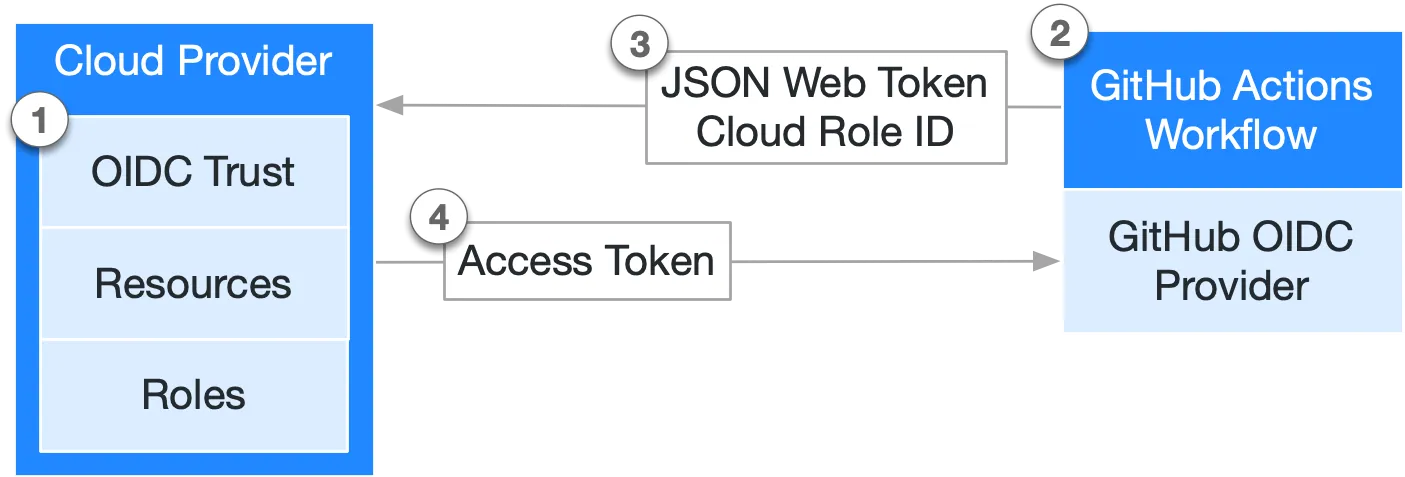
- You establish an OIDC trust relationship in the cloud provider (in our case – GCP), allowing specific GitHub workflows to request cloud access tokens on behalf of a defined cloud role.
- Every time your job runs, GitHub's OIDC provider auto-generates an OIDC token. This token contains multiple claims to establish a security-hardened and verifiable identity about the specific workflow that is trying to authenticate.
- A step or action in the workflow job can request a token from GitHub’s OIDC provider, which can then be presented to the cloud provider as proof of the workflow’s identity.
- Once the cloud provider successfully validates the claims presented in the token, it then provides a short-lived cloud access token that is available only for the duration of the job.
For the list of available providers besides GCP, see https://docs.github.com/en/actions/how-tos/secure-your-work/security-harden-deployments. But as of February 2026 you can configure this with all major clouds: GCP, AWS, Azure, even HashiCorp Vault.
Practical example
This implementation is split across two places:
.github/workflows/deploy-gke.yamlfor runtime authentication in CI.infra/terraform/for trust setup in GCP IAM.
The workflow authenticates with google-github-actions/auth@v3. Terraform defines who is trusted, from which repo, and from which branch.
See all files at https://github.com/AsoTora/blog/tree/main/github-actions-oidc.
High-Level overview

Setting up GCP – Terraform code example
Use the complete Terraform files from the remote practical repo:
In general, what you need to configure is:
Workload_identity_pool– Creates a federation boundary in GCP for external identities like GitHub Actions. Think of it as the container where trusted external workloads can be recognized.Workload identity pool provider– Defines how tokens are verified and mapped inside that pool (issuer, claims, conditions). This is where you enforce trust rules like allowed repository and ref (branch).Service accountandIAM role– Grants external identities permission to impersonate a specific GCP service account. Without thisiam.workloadIdentityUserbinding, OIDC auth can validate but cannot become the deployer identity.
Most important trust gate to notice:
attribute_condition = "assertion.repository == '${var.github_repository}' && assertion.ref == '${local.repo_branch_ref}'"
This enforces repository and branch-level authorization before credentials are issued.
Impersonation binding:
resource "google_service_account_iam_member" "github_wif_impersonation" {
  service_account_id = google_service_account.github_deployer.name
  role               = "roles/iam.workloadIdentityUser"
  member             = "principalSet://iam.googleapis.com/${google_iam_workload_identity_pool.github_actions.name}/attribute.repository/${var.github_repository}"
}
This allows only identities from your configured GitHub repository to impersonate the deployer service account.
Setting up GitHub Actions
Use the complete deploy workflow from the remote practical repo:
The workflow enables OIDC token requests with:
permissions:
  contents: read
  id-token: write
Without id-token: write, GitHub will not mint the OIDC token for the job. That means authentication to GCP fails early.
The deploy jobs call:
- uses: google-github-actions/auth@v3
  with:
    workload_identity_provider: ${{ vars.GCP_WIF_PROVIDER }}
    service_account: ${{ vars.GCP_DEPLOYER_SERVICE_ACCOUNT }}
If your cloud provider doesn't have an official action, or if you prefer to create custom scripts, you can manually request the JSON Web Token (JWT) from GitHub's OIDC provider. For example:
jobs:
  job:
    runs-on: ubuntu-latest
    steps:
    - uses: actions/github-script@v8
      id: script
      timeout-minutes: 10
      with:
        debug: true
        script: |
          const token = process.env['ACTIONS_ID_TOKEN_REQUEST_TOKEN']
          const runtimeUrl = process.env['ACTIONS_ID_TOKEN_REQUEST_URL']
          core.setOutput('TOKEN', token.trim())
          core.setOutput('IDTOKENURL', runtimeUrl.trim())
You can then use curl to retrieve a JWT from the GitHub OIDC provider. For example:
    - run: |
        IDTOKEN=$(curl -H "Authorization: Bearer ${{steps.script.outputs.TOKEN}}" ${{steps.script.outputs.IDTOKENURL}}  -H "Accept: application/json; api-version=2.0" -H "Content-Type: application/json" -d "{}" | jq -r '.value')
        echo $IDTOKEN
        jwtd() {
            if [-x $(command -v jq)](/blog/x-command-v-jq/); then
                jq -R 'split(".") | .[0],.[1] | @base64d | fromjson' <<< "${1}"
                echo "Signature: $(echo "${1}" | awk -F'.' '{print $3}')"
            fi
        }
        jwtd $IDTOKEN
        echo "idToken=${IDTOKEN}" >> $GITHUB_OUTPUT
      id: tokenid
After this step, your workload has received the JWT token and you can use it for authentication, in our example, we configure gcloud, docker and GKE credentials:
  - name: Set up gcloud
    uses: google-github-actions/setup-gcloud@v3

  - name: Configure Docker auth for Artifact Registry
    run: gcloud auth configure-docker "${{ vars.GCP_REGION }}-docker.pkg.dev" --quiet

  - name: Get GKE credentials
    uses: google-github-actions/get-gke-credentials@v3
    with:
      cluster_name: ${{ vars.GKE_CLUSTER_NAME }}
      location: ${{ vars.GKE_CLUSTER_LOCATION }}
      project_id: ${{ vars.GCP_PROJECT_ID }}
Congrats, now the workflow can run gcloud, push images, and deploy Helm charts. Credentials are short-lived and tied to this run context.
- name: Deploy with Helm
  run: |
    helm upgrade --install app deploy/helm/app \
      --namespace "${NAMESPACE}"
Recommended GitHub Variables to set
After terraform apply, set these repository variables for your actions:
GCP_WIF_PROVIDERfromterraform output -raw github_wif_providerGCP_DEPLOYER_SERVICE_ACCOUNTfromterraform output -raw github_deployer_service_account_email- plus deployment vars like
GCP_PROJECT_ID,GCP_REGION,GKE_CLUSTER_NAME, andGKE_CLUSTER_LOCATION
Common Failure Modes and a small practical tip
Quick checklist for potential failures
-
id-token: writemissing. GitHub cannot issue the OIDC token. -
Wrong provider path in
GCP_WIF_PROVIDER. The auth action cannot exchange the token. -
Wrong service account in
GCP_DEPLOYER_SERVICE_ACCOUNT. Impersonation fails. -
Branch mismatch (
assertion.ref). Runs outside allowed branch are denied by attribute condition. -
Repository mismatch (
assertion.repository). Forks or other repos cannot use this trust config.
TIP: Use Terraform outputs and gh CLI to fill GitHub variables quickly:
gh variable set GCP_WIF_PROVIDER --body "$(terraform output -raw github_wif_provider)"
gh variable set GCP_DEPLOYER_SERVICE_ACCOUNT --body "$(terraform output -raw github_deployer_service_account_email)"
References
- GitHub OIDC reference
- Configuring OIDC in Google Cloud from GitHub Actions
- google-github-actions/auth action
- GCP Workload Identity Federation for deployment pipelines
- GCP principal identifiers (
principalSet) - Terraform:
google_iam_workload_identity_pool_provider - Terraform: service account IAM bindings