Automatic IAM Database Authentication to GCP CloudSQL from GKE
Connecting applications running in GKE to CloudSQL is a common pattern, but managing database credentials securely is a pain. You either end up with passwords stored in Kubernetes Secrets (which then need rotation policies, access controls, etc.) or service account key files mounted into pods (even worse from a security standpoint).
There are other ways, but here I will outline one approach that I find pretty neat: Automatic IAM Database Authentication.
With this approach, your application pods authenticate to CloudSQL using their GCP IAM identity, and no passwords or key files are involved anywhere.
This post walks through setting up a development scenario and then demonstrates two connection methods:
- Cloud SQL Auth Proxy with the
--auto-iam-authnflag - Cloud SQL Python Connector with
enable_iam_auth=True. Similar connectors are available for other languages, including Java, Go, and Node.js (see https://docs.cloud.google.com/sql/docs/postgres/connect-connectors)
Key Concepts
Two GCP features make this possible:
GKE Workload Identity Federation lets a Kubernetes ServiceAccount (KSA) act as a Google Cloud IAM Service Account (GSA). When a pod runs with that KSA, it can request GCP credentials from the GKE metadata server without any key files.
Cloud SQL IAM Database Authentication lets you log in to PostgreSQL (or MySQL) using an IAM principal instead of a username/password. The database validates an OAuth2 access token instead of a password.
The trust chain looks like this:
Dev Scenario Setup
We will create the following resources:
- A GKE Autopilot cluster with Workload Identity enabled
- A Cloud SQL PostgreSQL instance with IAM authentication enabled
- An IAM Service Account with the required roles
- An IAM database user in PostgreSQL
- A Kubernetes ServiceAccount linked to the IAM Service Account via Workload Identity
This setup will vary depending on your infrastructure. In many environments, you would define GKE and related resources in Terraform. For simplicity, this guide uses the
gcloudCLI.
Variables
Set these for the commands below:
export PROJECT_ID="your-project-id"
export REGION="us-central1"
export CLUSTER_NAME="demo-cluster"
export SQL_INSTANCE="demo-postgres"
export GSA_NAME="cloudsql-client"
export KSA_NAME="cloudsql-ksa"
export NAMESPACE="default"
Create the GKE Cluster
Autopilot clusters have Workload Identity enabled by default:
gcloud container clusters create-auto $CLUSTER_NAME \
    --region=$REGION \
    --project=$PROJECT_ID
For Standard clusters, add --workload-pool=$PROJECT_ID.svc.id.goog.
Create the CloudSQL PostgreSQL Instance
gcloud sql instances create $SQL_INSTANCE \
    --database-version=POSTGRES_15 \
    --tier=db-f1-micro \
    --region=$REGION \
    --project=$PROJECT_ID \
    --database-flags=cloudsql.iam_authentication=on
The cloudsql.iam_authentication=on flag enables IAM database authentication.
Create the IAM Service Account
gcloud iam service-accounts create $GSA_NAME \
    --display-name="CloudSQL Client SA" \
    --project=$PROJECT_ID
Grant it the required roles:
gcloud projects add-iam-policy-binding $PROJECT_ID \
    --member="serviceAccount:$GSA_NAME@$PROJECT_ID.iam.gserviceaccount.com" \
    --role="roles/cloudsql.instanceUser"

gcloud projects add-iam-policy-binding $PROJECT_ID \
    --member="serviceAccount:$GSA_NAME@$PROJECT_ID.iam.gserviceaccount.com" \
    --role="roles/cloudsql.client"
roles/cloudsql.instanceUseris required for IAM database authenticationroles/cloudsql.clientis required for the Cloud SQL Proxy / Connector to connect
Create the IAM Database User
For PostgreSQL, the IAM database user is the service account email without the .gserviceaccount.com suffix (❗this is important):
gcloud sql users create $GSA_NAME@$PROJECT_ID.iam \
    --instance=$SQL_INSTANCE \
    --type=CLOUD_IAM_SERVICE_ACCOUNT \
    --project=$PROJECT_ID
Grant it permissions on a database (create a database first if needed):
gcloud sql databases create mydb --instance=$SQL_INSTANCE --project=$PROJECT_ID
Then connect as the Postgres admin and grant permissions:
gcloud sql connect $SQL_INSTANCE --user=postgres --project=$PROJECT_ID
GRANT ALL PRIVILEGES ON DATABASE mydb TO "cloudsql-client@your-project-id.iam";
GRANT ALL PRIVILEGES ON ALL TABLES IN SCHEMA public TO "cloudsql-client@your-project-id.iam";
Create and Configure the Kubernetes ServiceAccount
Get cluster credentials:
gcloud container clusters get-credentials $CLUSTER_NAME \
    --region=$REGION \
    --project=$PROJECT_ID
Create the KSA:
kubectl create serviceaccount $KSA_NAME --namespace=$NAMESPACE
Annotate it to link to the GSA:
kubectl annotate serviceaccount $KSA_NAME \
    --namespace=$NAMESPACE \
    iam.gke.io/gcp-service-account=$GSA_NAME@$PROJECT_ID.iam.gserviceaccount.com
Grant the GSA permission to be impersonated by the KSA:
gcloud iam service-accounts add-iam-policy-binding \
    $GSA_NAME@$PROJECT_ID.iam.gserviceaccount.com \
    --role="roles/iam.workloadIdentityUser" \
    --member="serviceAccount:$PROJECT_ID.svc.id.goog[$NAMESPACE/$KSA_NAME]" \
    --project=$PROJECT_ID
Now that we have the prerequisites configured, we can connect using one of two IAM authentication methods:
Connection Method 1: Cloud SQL Auth Proxy
The Cloud SQL Auth Proxy is the recommended method for connecting to a Cloud SQL instance. The Cloud SQL Auth Proxy:
- Works with both public and private IP endpoints
- Validates connections using credentials for a user or service account
- Wraps the connection in an SSL/TLS layer that is authorized for a Cloud SQL instance
(See more at https://docs.cloud.google.com/sql/docs/postgres/connect-auth-proxy)
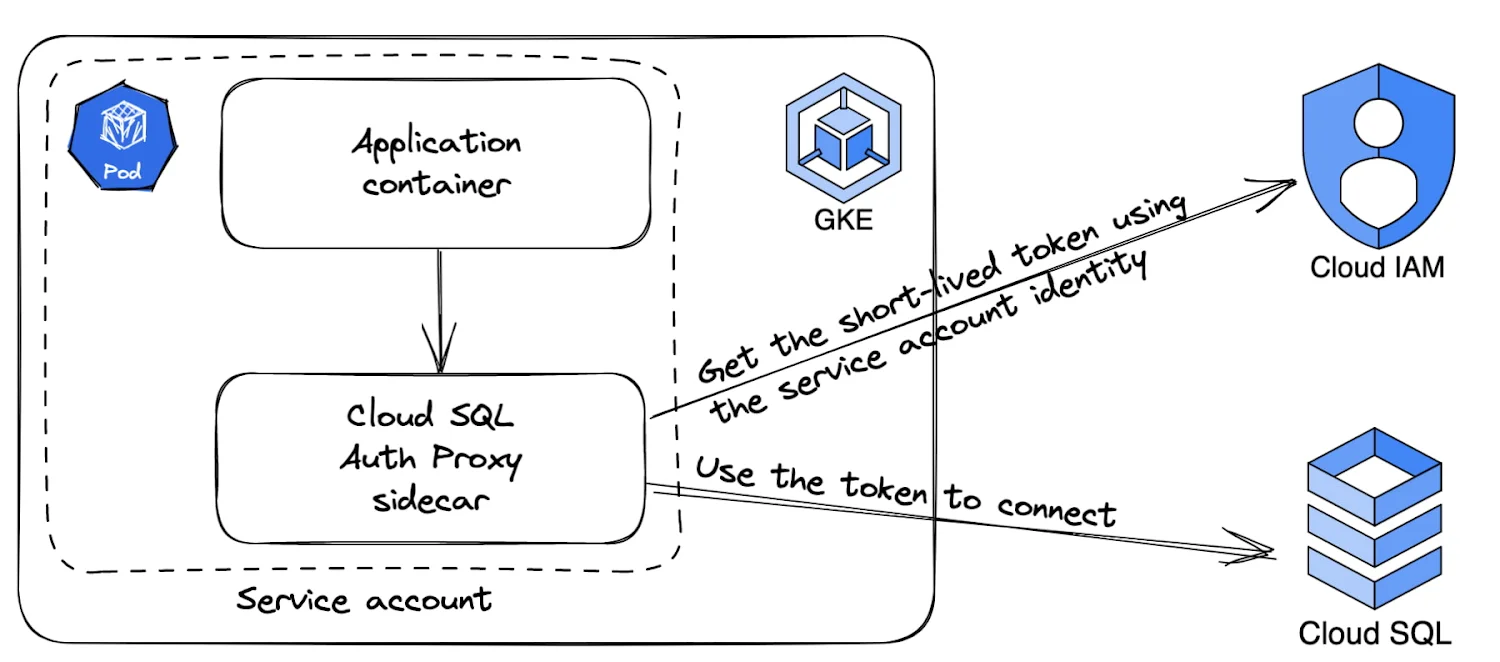
The following diagram shows how the Cloud SQL Auth Proxy connects to Cloud SQL:
Deployment Manifest
apiVersion: apps/v1
kind: Deployment
metadata:
  name: myapp
spec:
  replicas: 1
  selector:
    matchLabels:
      app: myapp
  template:
    metadata:
      labels:
        app: myapp
    spec:
      serviceAccountName: cloudsql-ksa
      containers:
        - name: myapp
          image: python:3.11-slim
          command: ["sleep", "infinity"]
          env:
            - name: DB_HOST
              value: "127.0.0.1"
            - name: DB_PORT
              value: "5432"
            - name: DB_USER
              value: "cloudsql-client@your-project-id.iam"
            - name: DB_NAME
              value: "mydb"
          resources:
            requests:
              memory: "256Mi"
              cpu: "100m"
      initContainers:
        - name: cloud-sql-proxy
          restartPolicy: Always
          image: gcr.io/cloud-sql-connectors/cloud-sql-proxy:2.14.1
          args:
            - "--auto-iam-authn"
            - "--structured-logs"
            - "--port=5432"
            - "your-project-id:us-central1:demo-postgres"
          securityContext:
            runAsNonRoot: true
          resources:
            requests:
              memory: "256Mi"
              cpu: "100m"
Replace your-project-id:us-central1:demo-postgres with your instance connection name (found in the Cloud Console or via gcloud sql instances describe).
Python Application Code
With the proxy handling authentication, your app connects without a password:
import os
import psycopg2

conn = psycopg2.connect(
    host=os.environ["DB_HOST"],
    port=os.environ["DB_PORT"],
    user=os.environ["DB_USER"],
    dbname=os.environ["DB_NAME"],
)

with conn.cursor() as cur:
    cur.execute("SELECT version();")
    print(cur.fetchone())

conn.close()
No password is needed because the proxy injects the OAuth2 token automatically.
How It Works
- The pod starts, and the proxy sidecar authenticates via the GKE metadata server as the GSA
- The proxy fetches an OAuth2 access token for the GSA
- The app connects to
localhost:5432 - The proxy intercepts the connection and presents the OAuth2 token to Cloud SQL as the password
- Cloud SQL validates the token and establishes the database connection
Connection Method 2: Cloud SQL Python Connector
The Cloud SQL Python Connector does the same IAM token exchange as the Cloud SQL Auth Proxy, but in-process and with no sidecar container needed.
Installation
pip install "cloud-sql-python-connector[pg8000]"
Deployment Manifest
This is simpler than the proxy approach since there is no sidecar:
apiVersion: apps/v1
kind: Deployment
metadata:
  name: myapp
spec:
  replicas: 1
  selector:
    matchLabels:
      app: myapp
  template:
    metadata:
      labels:
        app: myapp
    spec:
      serviceAccountName: cloudsql-ksa
      containers:
        - name: myapp
          image: your-registry/myapp:latest
          env:
            - name: INSTANCE_CONNECTION_NAME
              value: "your-project-id:us-central1:demo-postgres"
            - name: DB_USER
              value: "cloudsql-client@your-project-id.iam"
            - name: DB_NAME
              value: "mydb"
          resources:
            requests:
              memory: "256Mi"
              cpu: "100m"
Note the serviceAccountName: cloudsql-ksa field; it uses the same service account we configured in Create and Configure the Kubernetes ServiceAccount for IAM federation.
Python Application Code
import os
import sqlalchemy
from google.cloud.sql.connector import Connector

connector = Connector()

def getconn():
    return connector.connect(
        os.environ["INSTANCE_CONNECTION_NAME"],
        "pg8000",
        user=os.environ["DB_USER"],
        db=os.environ["DB_NAME"],
        enable_iam_auth=True,
    )

engine = sqlalchemy.create_engine(
    "postgresql+pg8000://",
    creator=getconn,
)

with engine.connect() as conn:
    result = conn.execute(sqlalchemy.text("SELECT version();"))
    print(result.fetchone())

connector.close()
How It Works
- App starts and initializes the Connector
- Connector uses Application Default Credentials (ADC), which resolve via the GKE metadata server to the GSA
- Connector fetches an OAuth2 access token
- Connector opens a direct mTLS connection to Cloud SQL and presents the token
- Database connection is established
Comparison
| Aspect | Cloud SQL Proxy | Python Connector |
|---|---|---|
| Language support | Any | Python (other languages have their own connectors) |
| Deployment complexity | Requires sidecar container | No sidecar needed |
| Resource overhead | Separate process | In-process |
| Connection pooling | External (use SQLAlchemy, etc.) | Works with SQLAlchemy |
| Best for | Multi-language applications, teams already using the proxy, language-agnostic scenarios, handling mTLS | Applications already using Google Cloud libraries, simpler deployments |
Wrap-up
With Workload Identity and IAM database authentication:
- No passwords are stored anywhere
- No service account key files are created or mounted
- Credentials rotate automatically (OAuth2 tokens are short-lived)
- Access is controlled entirely through IAM
This is the recommended way to connect GKE workloads to Cloud SQL in production.
Cleanup
To tear down the resources created in this post:
gcloud sql databases delete mydb \
    --instance=$SQL_INSTANCE \
    --project=$PROJECT_ID

gcloud sql instances delete $SQL_INSTANCE \
    --project=$PROJECT_ID

gcloud projects remove-iam-policy-binding $PROJECT_ID \
    --member="serviceAccount:$GSA_NAME@$PROJECT_ID.iam.gserviceaccount.com" \
    --role="roles/cloudsql.instanceUser"

gcloud projects remove-iam-policy-binding $PROJECT_ID \
    --member="serviceAccount:$GSA_NAME@$PROJECT_ID.iam.gserviceaccount.com" \
    --role="roles/cloudsql.client"

gcloud iam service-accounts delete \
    $GSA_NAME@$PROJECT_ID.iam.gserviceaccount.com \
    --project=$PROJECT_ID

gcloud container clusters delete $CLUSTER_NAME \
    --region=$REGION \
    --project=$PROJECT_ID